How to Change the Default Paste Shortcut to Command + V on macOS
By default, macOS pastes text with its original formatting, which can be inconvenient when working in editors, emails, or documentation.
Although macOS provides a Paste and Match Style option, its default shortcut (⌥ + ⇧ + ⌘ + V) is long and impractical for frequent use.
This guide explains how to remap Paste and Match Style to the familiar ⌘ + V shortcut.
Default macOS Shortcut
The default shortcut for Paste and Match Style is shown below:

How to Remap “Paste and Match Style” to CMD + V
The following steps apply to macOS Sequoia and macOS Tahoe.
1. Open Keyboard Shortcuts
Navigate to:
System Settings → Keyboard → Keyboard Shortcuts…

2. Add a New App Shortcut
- In the left sidebar, select App Shortcuts
- Choose All Applications
- Click the “+” button

3. Configure the Shortcut
Fill in the fields as follows:
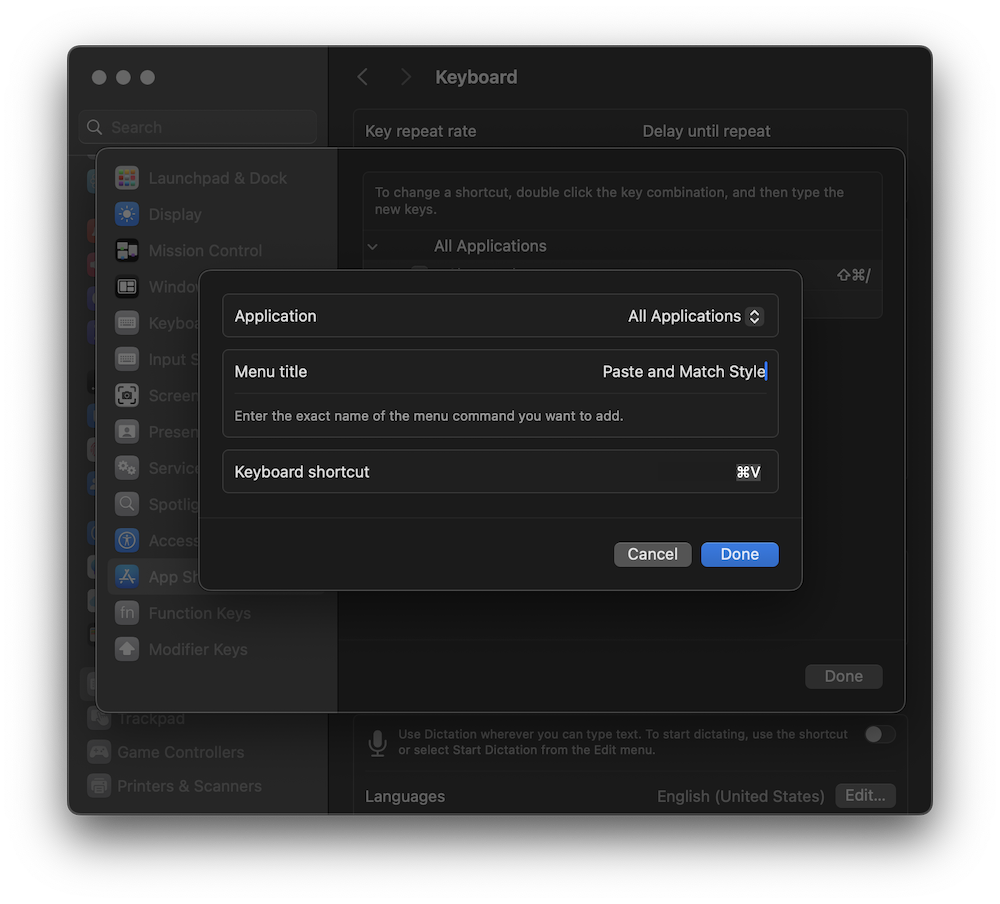
- Application: All Applications
- Menu Title:
Paste and Match Style⚠️ The menu title must match exactly, including capitalization.
- Keyboard Shortcut: Press ⌘ V
Click Done to save the shortcut.
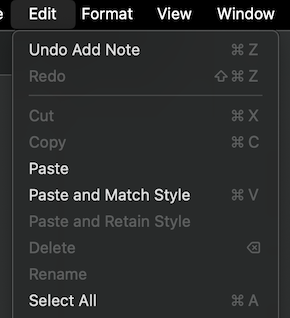
4. Verify the Change
Open any application that supports text input and right-click inside a text field.
You should now see Paste and Match Style assigned to ⌘ + V in the context menu.
Notes and Tips
- This shortcut applies system-wide to all applications.
- If you still need formatted pasting, consider assigning a different shortcut (for example, ⌥ + ⌘ + V) to the original Paste action.
- Some applications may override system shortcuts, in which case this change may not apply.
With this small adjustment, pasting clean, unformatted text becomes faster and more intuitive, improving your overall macOS workflow.
comments powered by Disqus